Docker - PC
Feature Overview
Docker is a powerful containerization tool. On a NAS, you can use Docker to quickly deploy a wide variety of services and applications.
With Docker, you can flexibly create, run, and manage multiple independent application containers. This enables “one device, multiple uses,” transforming your NAS from a simple storage device into a powerful multi-application platform.
Overview
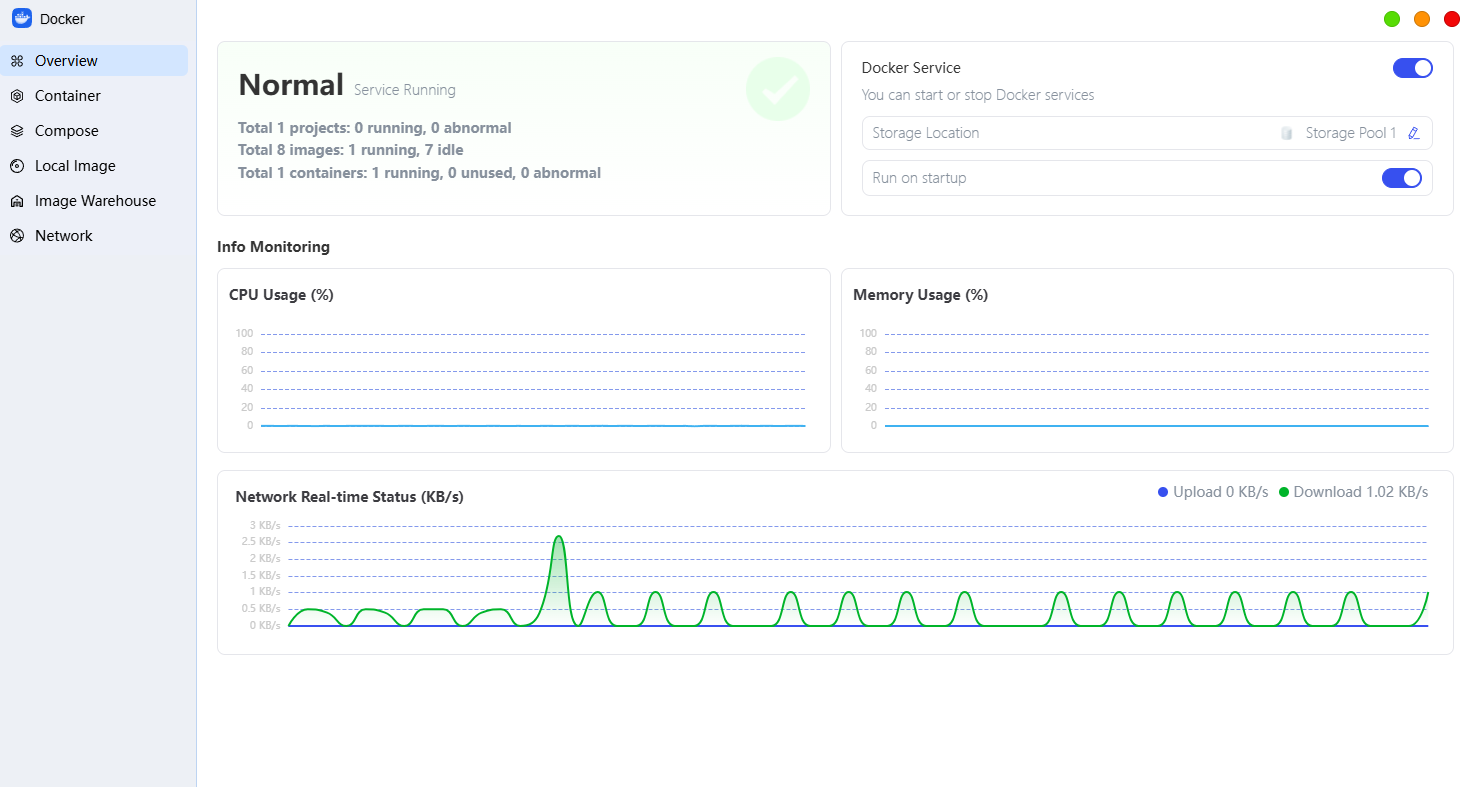
The "Overview" interface serves as your digital dashboard, where you can quickly get a snapshot of the overall health of your services.
● Resource Monitoring: The system displays CPU and memory usage for Docker services in real time.
● Status Statistics: You can view the total number of containers and projects, the number currently running, and the number of images stored locally.
● Storage Usage: You can view the amount of data occupied by images and containers (this data does not include application data generated within the containers).
Docker
The “Docker” interface displays all containers created on the device. Regardless of how the containers were created, you can monitor and maintain them all from here.
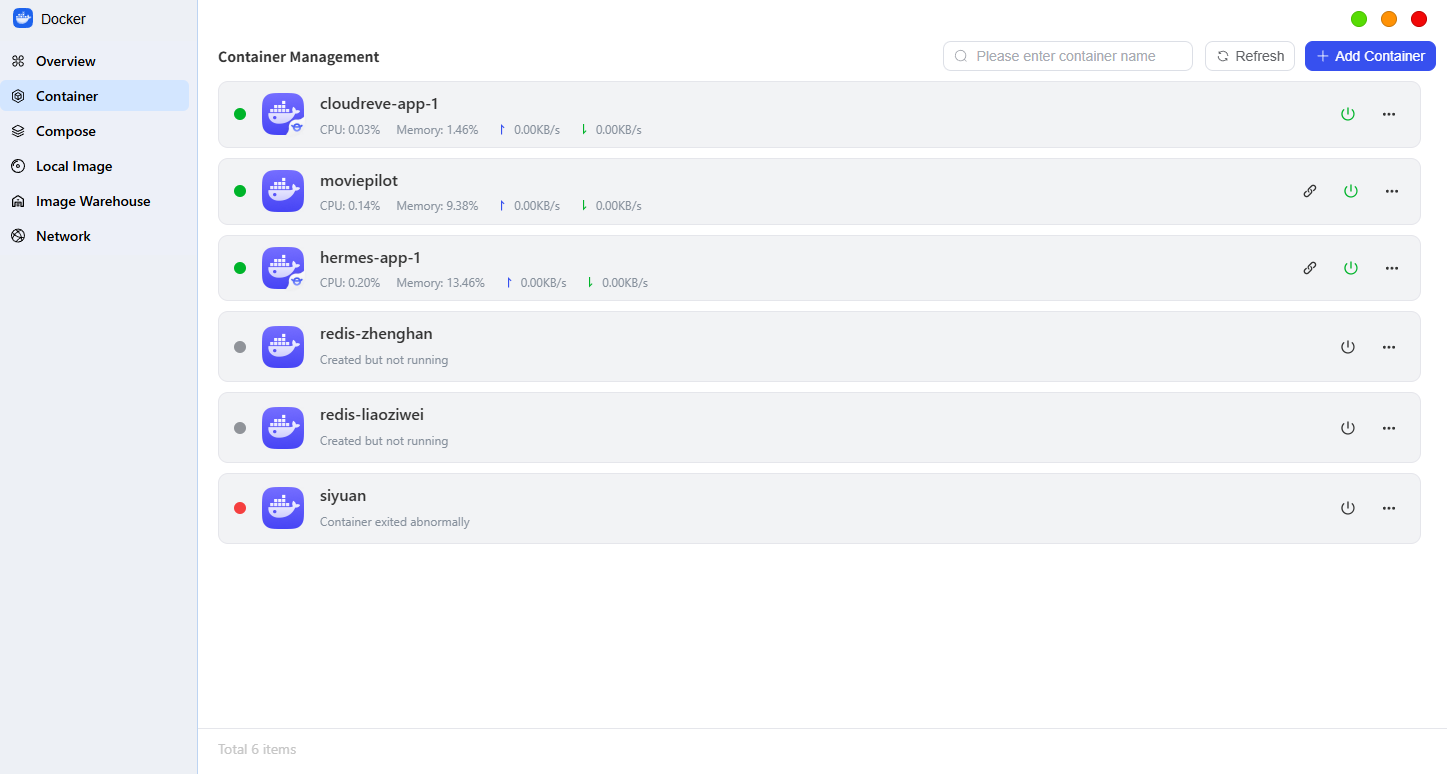
Unified Container View
The system centrally displays all containers on the device and supports search and filtering. Containers typically originate from the following four sources:
● Containers manually configured and started by users using local images.
● Containers created and deployed via “Compose.”
Differentiated Editing Permissions
The system employs different management strategies for containers from different sources to ensure stability:
● Directly editable: For containers created manually or imported via JSON, you can click the “Edit” button to modify parameters directly.
● Must be modified within the project: For containers deployed via “Projects,” you must navigate to the “Projects” interface to modify the project’s Compose configuration and redeploy.
● Cannot be modified: For containers in subordinate suites within the Application Center, the system does not support configuration modifications to ensure system stability.
Basic Management
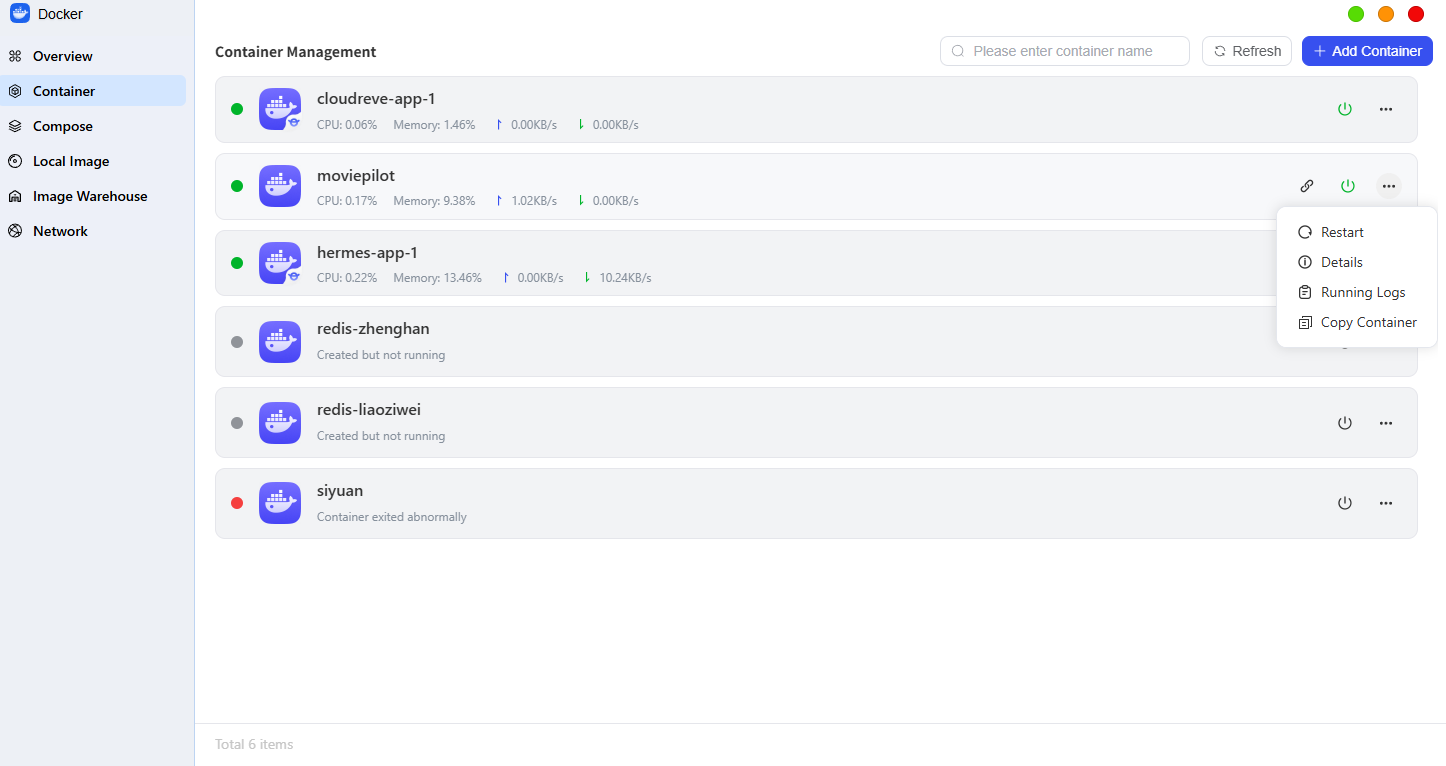
In the container list, you can perform the following management operations directly on containers:
● Start/Stop: Control the container’s running status.
● Restart: Reload the container service.
● Delete: Remove container instances that are no longer needed.
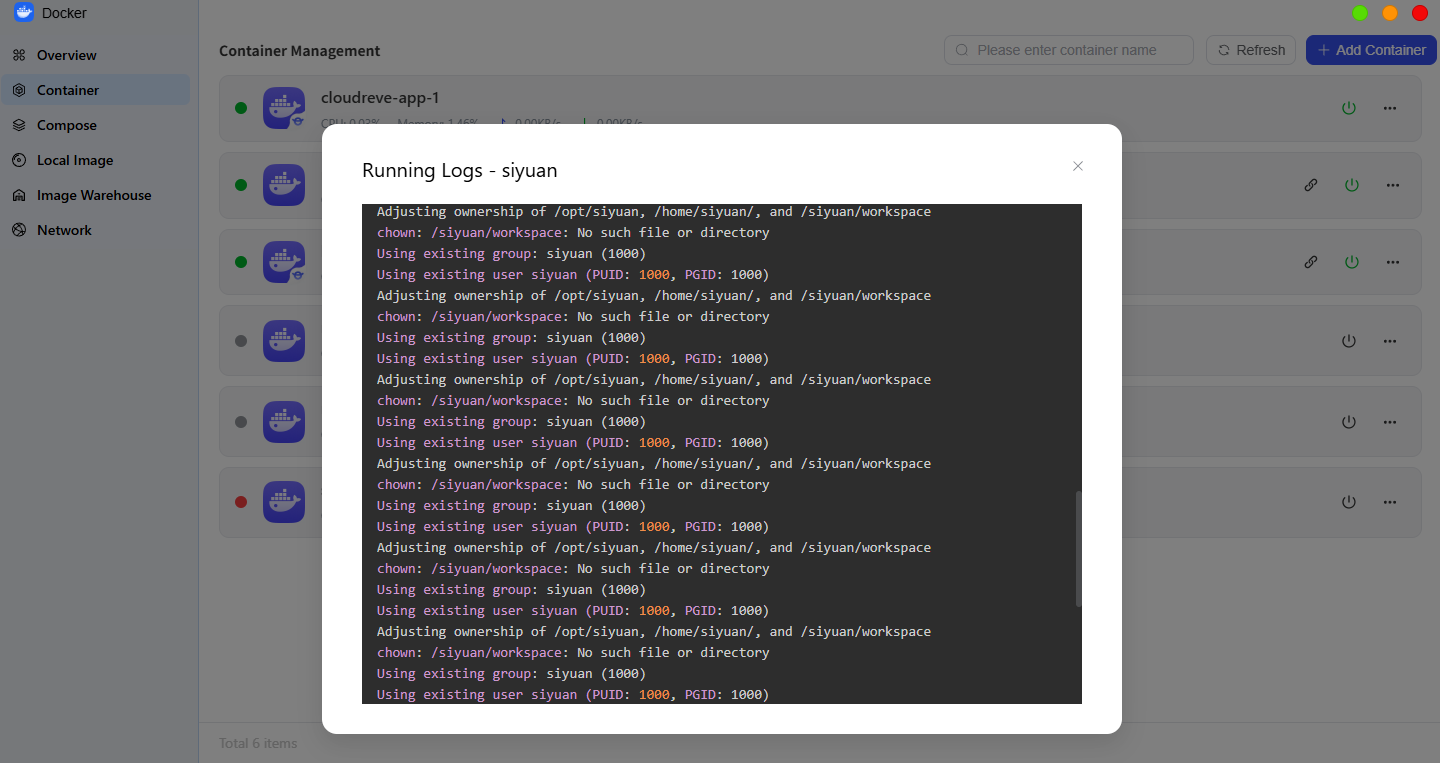
**Logs: **View the container's real-time runtime logs to quickly identify the cause of startup failures or runtime anomalies.
Compose
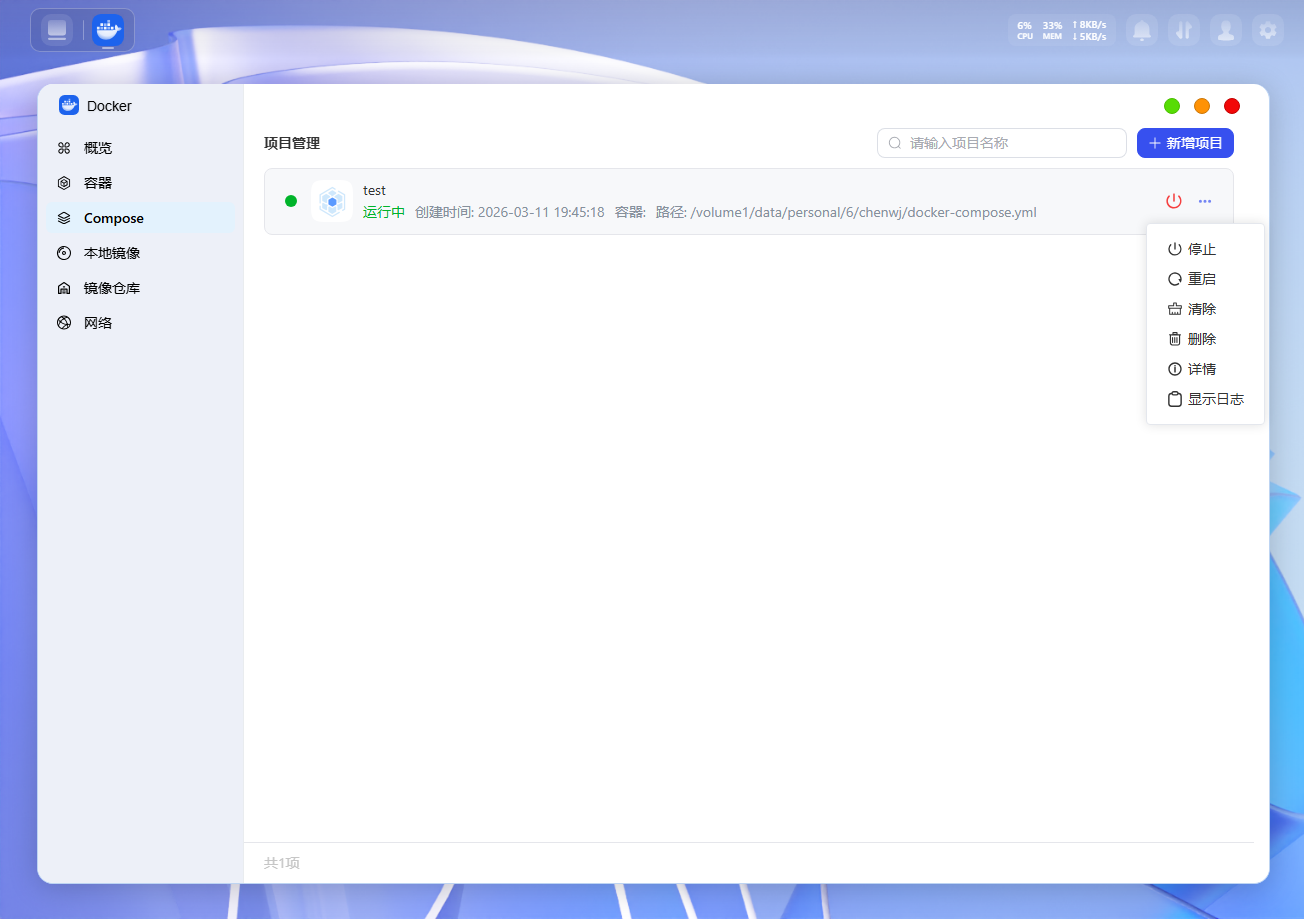
The “Compose” interface is used to manage container services deployed using Docker Compose. By using an orchestration file (docker-compose.yml), you can start or stop a group of interdependent containers all at once, making it easy to manage multi-container applications in bulk.
Manage Project List
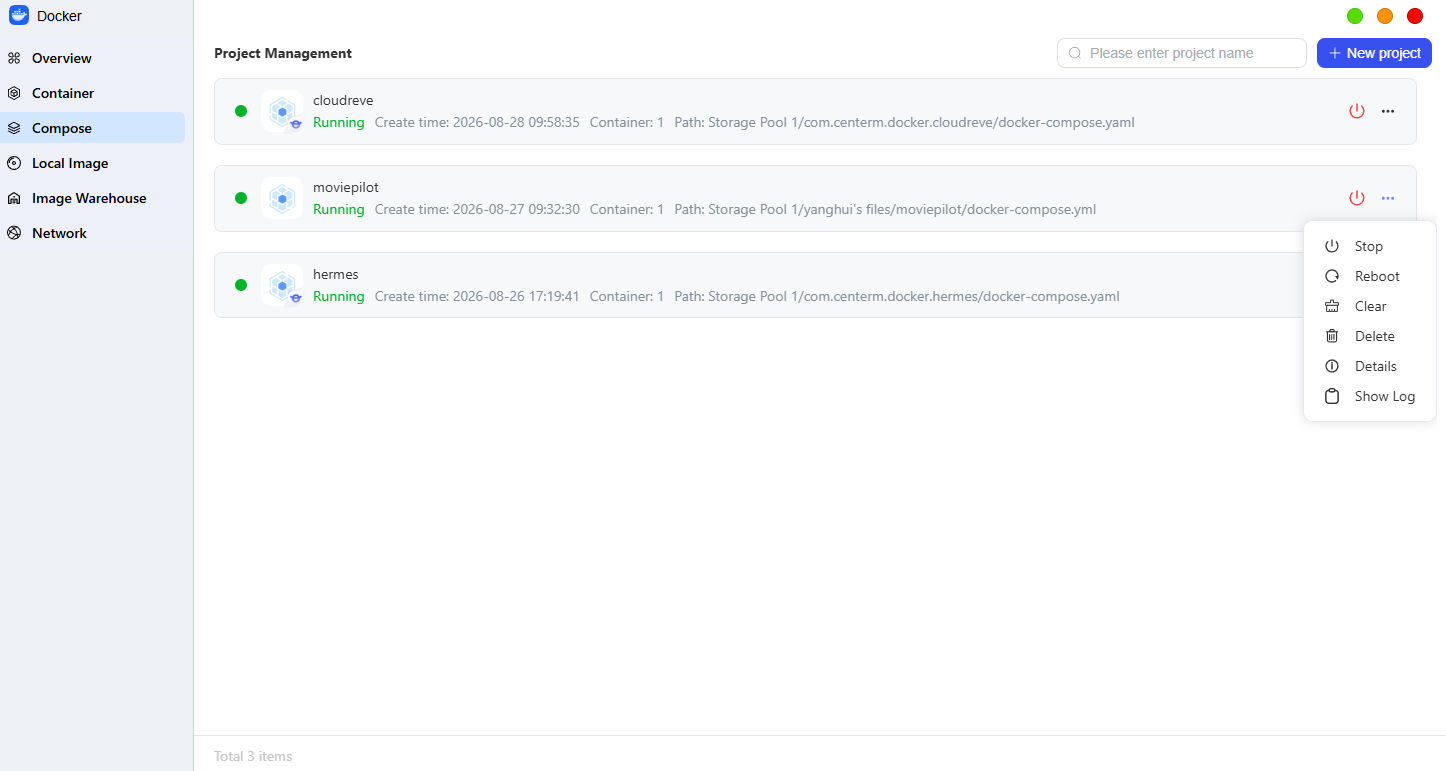
On the Projects screen, you can view all created project configurations and quickly locate specific projects using search, filter, and sort functions.
● Status Control: You can “Start” or “Stop” created projects.
● Additional Actions: For more detailed management, double-click a project entry or click the “...” icon to the right of the project to access additional actions such as Stop, Restart, Clear, Delete, Details, and View Log.
Create a New Project
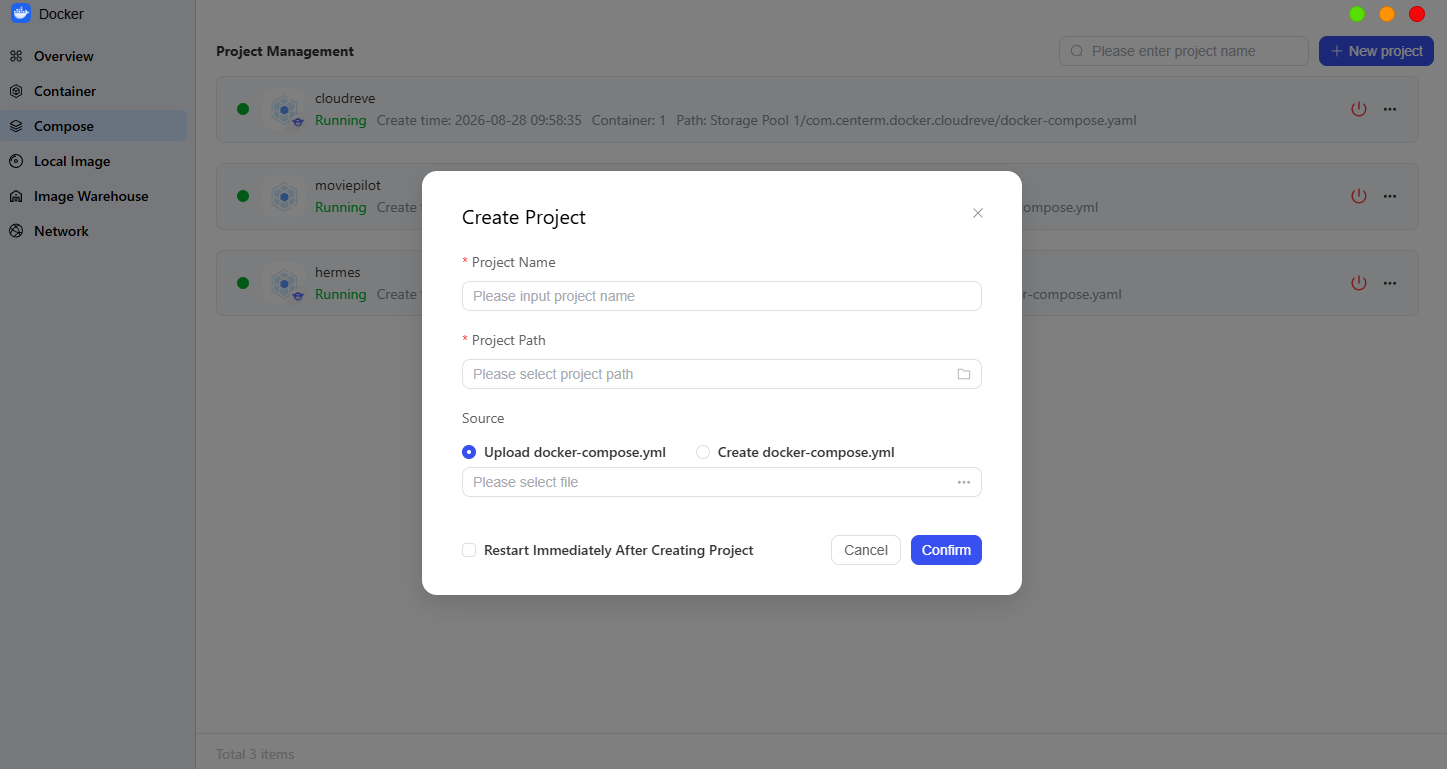
You can follow these steps to create a new Docker Compose project:
1.** Create a New Project**: Click the "Create" button and enter a project name.
2. Automatic Archiving: The system will automatically create a folder with the same name as the project in the docker directory under the shared folder to store the data and configuration files generated by the project.
3. Configuration Files: The system supports Compose configuration files with the extensions .yaml or .yml.
Image
The Docker application provides a comprehensive image management system. From this interface, you can easily access official resources from Docker Hub, manage existing local image files, and configure network settings to optimize your download experience.
Search and Download Images
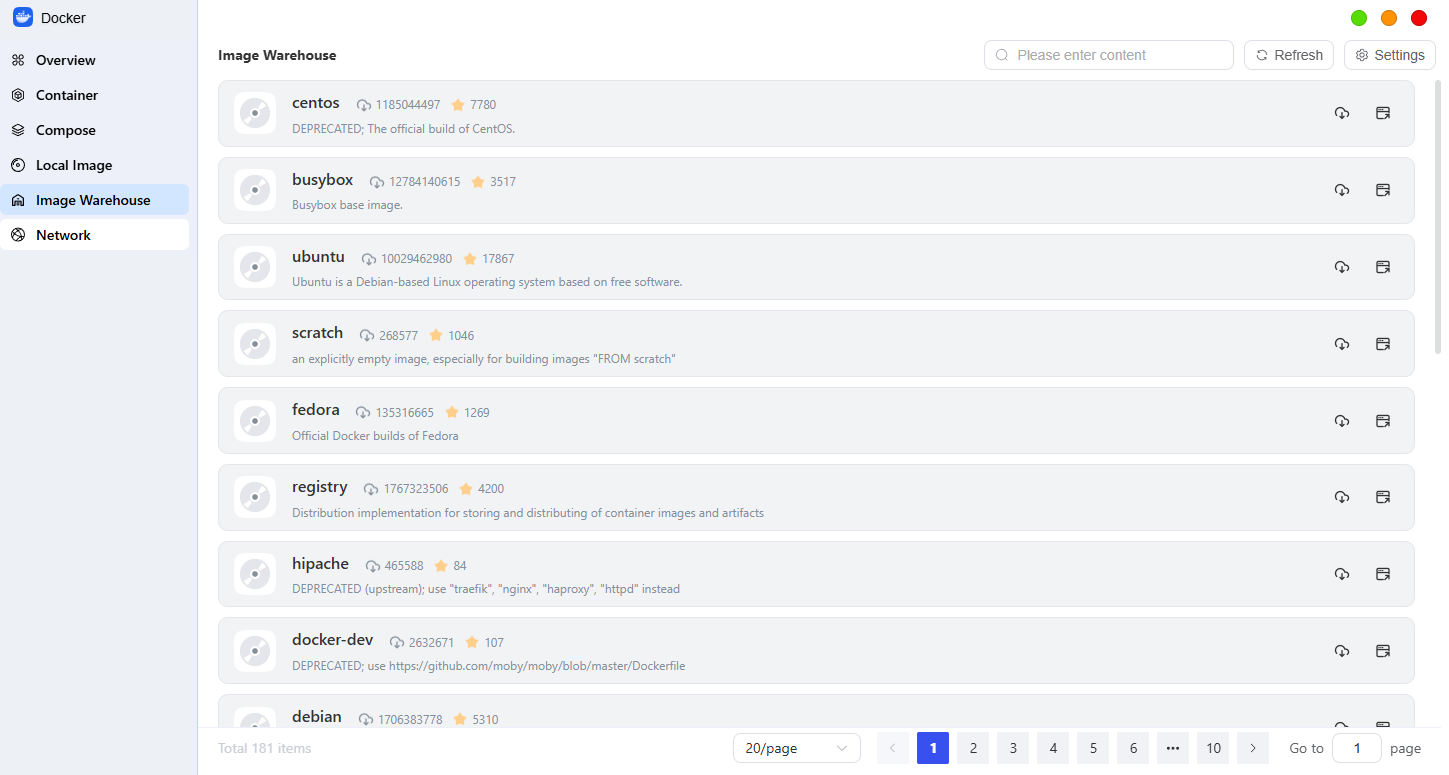
You can search for and browse official images on Docker Hub in the "Image Repository." Once you find an application you like, you can download it to your local machine to prepare for creating a container.
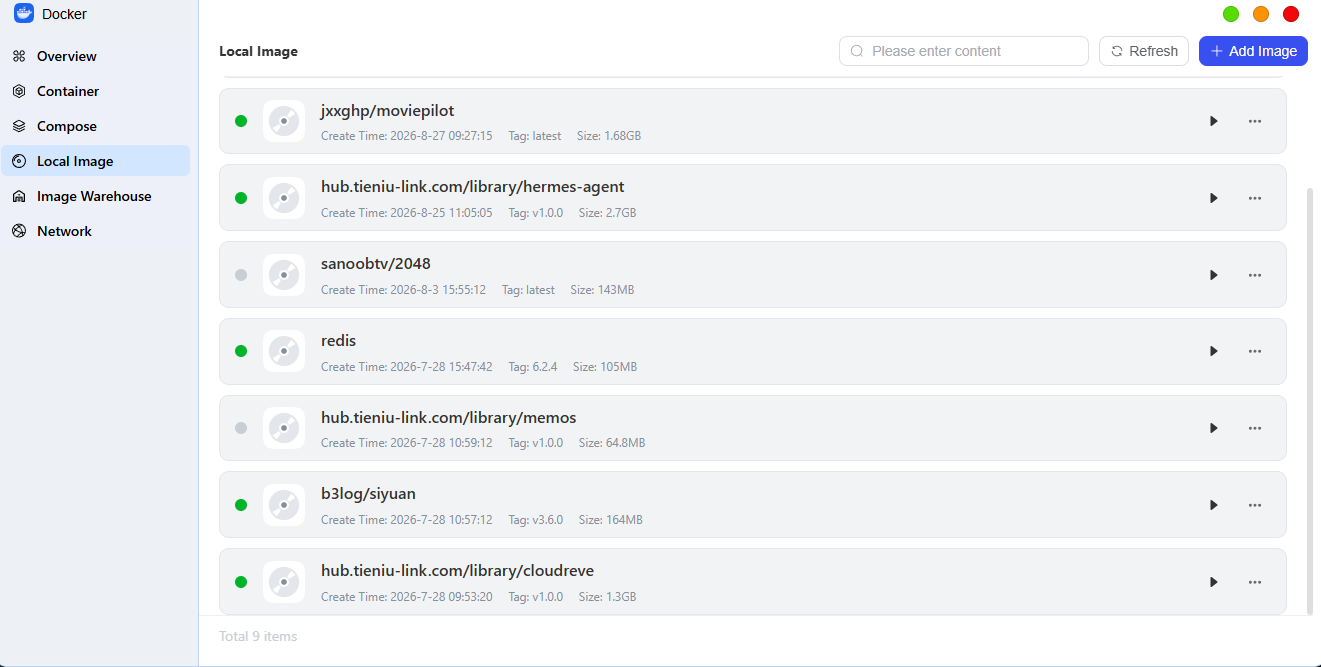
Manage Local Images
In the "Local Images" list, you can comprehensively manage downloaded resources and intuitively view the names, file sizes, and specific tag version information for all local images.
● Create a Container: Use an image from the list to quickly create and run a new container instance.
● Free Up Space: You can delete old image versions that are no longer in use to free up disk storage space on the NAS.
Network
On the “Network” interface, you can view and manage all network configurations in the Docker environment. The network mode determines how containers interact with external networks and how they communicate with each other.
View Network List
You can view all network modes currently available on the system, which primarily include the following types:
● Bridge (Bridge Mode): This is the default network mode. Containers are isolated from the NAS network and communicate via port mapping.
● Host (Host Mode): Containers directly share the NAS network and do not require port mapping.
● None: Containers are completely disconnected from the network, are not assigned an IP address, and only support the execution of their own internal programs; this is suitable for local tasks that do not require an internet connection.